Perfecting skin in Photoshop is a skill that can really make or break beauty shots. Whether in commercial work, fashion, or just personal portraits, getting skin to look smooth, healthy, and natural is often the goal. Overprocessing can leave photos looking fake, so what really makes retouched skin stand out is subtlety—refining texture, evening tones, and keeping all the little natural details that make a face unique. Here’s my favorite workflow and the key ideas behind flawless skin retouching for beauty photography.
What Makes Flawless Skin Retouching Special?
Fixing up skin in Photoshop isn’t just about getting rid of pimples or softening lines. Great retouching means balancing natural texture and realistic details with a polished, magazine-ready finish. Whether it’s a soft glow for fashion or a clear complexion for headshots, keeping things natural is really important. You want skin to look vibrant, not plastic or blurry.
The good news is, you don’t need magic or a supercomputer to get pro results. Most of the best techniques build on basic Photoshop tools like healing brushes, dodging and burning, and gentle use of frequency separation. A light touch and patience can pull off that clean, smooth look that stands out for all the right reasons.

Getting Ready: Setting Up Your Photoshop Workspace
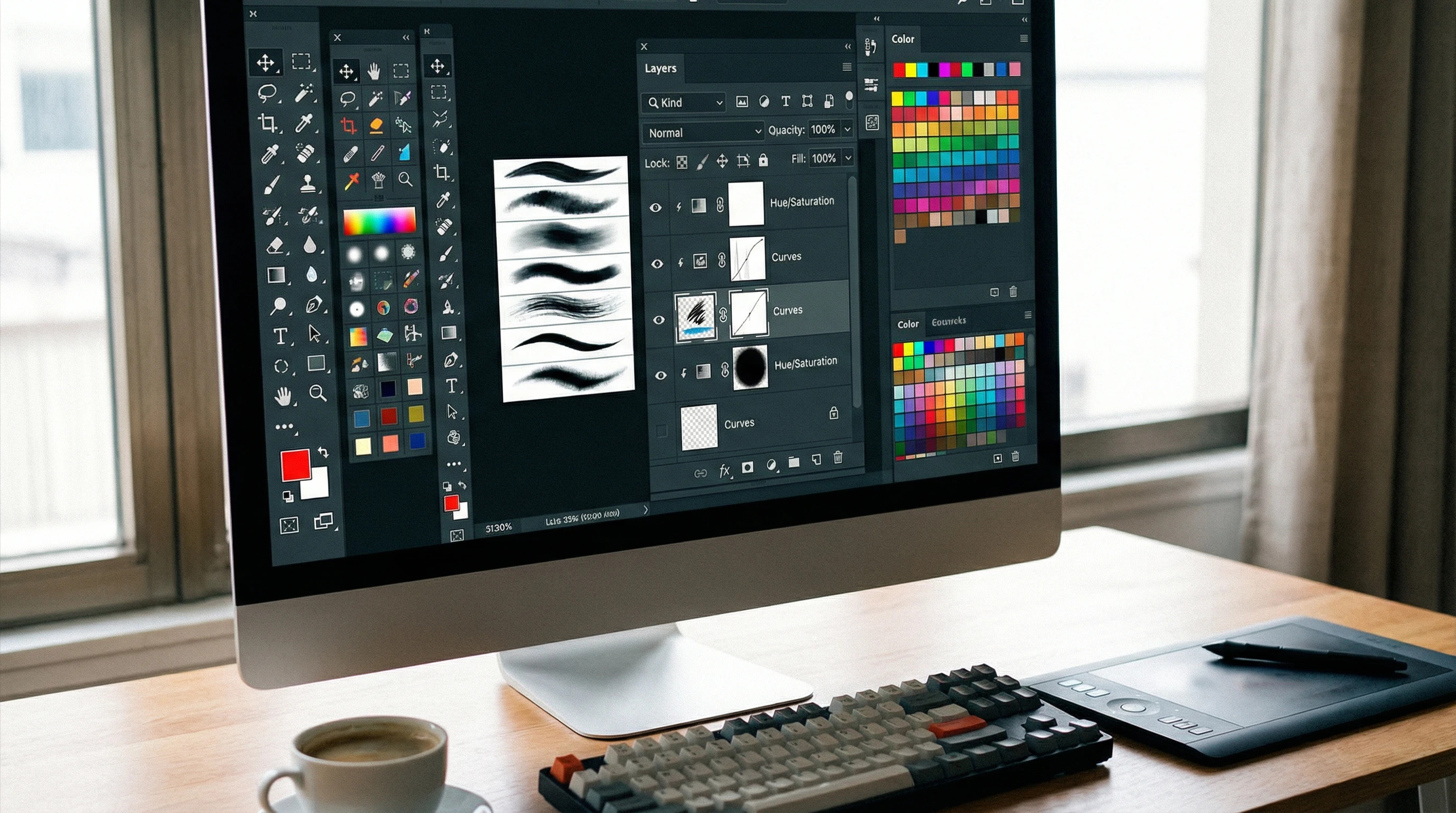
Before opening a photo, I like to get everything organized. Working on a highres image (preferably RAW format) gives you more detail to play with. Calibrating your screen ensures colors and skin tones will show up right, and closing out extra panels or apps helps keep things running smoothly.
Here are some musthave Photoshop tools and tips for anyone looking to retouch skin:
- Layers: Always work on duplicate layers. This way, your edits are non-destructive so you can go back if needed.
- Zoom Tools: Zoom in close for detail work, but zoom out often to check on the overall effect.
- Tablet: A tablet (like a Wacom) gives you a big boost in precision and pressure control, especially for dodging and burning.
This setup might sound a bit technical, but after a couple projects, I found it helped catch small mistakes before they became hard to fix. Staying organized sets a strong foundation for top-tier results.
Step-By-Step: My Go-To Workflow for Skin Retouching
Most of my retouching projects follow a similar path, which helps keep everything neat and non-destructive while giving more flexibility to change direction halfway through. Here’s how I work:
- Cleaning Up Blemishes: I start off by duplicating my background layer. Using the Spot Healing Brush or Healing Brush Tool, I remove obvious distractions like acne, stray hairs, or lint. Keeping the brush soft and sample settings on “Current & Below” gives more control. For bigger distractions, the Clone Stamp Tool on a separate layer lets you build up tricky portions in small steps.
- Evening Out Texture (Frequency Separation): Once cleanup’s done, I move to frequency separation. This technique splits the image into ‘texture’ and ‘color/tone’ layers. That allows you to smooth out uneven color without flattening pores or losing natural texture. Using a Photoshop action or the manual approach with blur (for color) and high pass (for texture) helps keep skin looking realistic while still smoothing out problem areas.
- Dodging and Burning: Using either 50% gray layers (set to Soft Light blend mode) or curve adjustment layers, I gently lighten (dodge) or darken (burn) small areas to even out shadows and highlights. This step helps correct uneven lighting and brings out a natural glow in the skin. It can also subtly reshape facial features and make makeup or bone structure pop just the right amount.
- Refining Color: I usually do a color balance or selective color pass to adjust any redness, add a bit of warmth or coolness, and blend distracting color shifts. Hue/Saturation, Color Balance, or even Selective Color layers come in handy here.
- Sharpening Details: At the end, I’ll often add a subtle sharpening pass to eyelashes, eyes, brows, and lips. These features can be lost during earlier smoothing, so bringing them back gently restores freshness and realism to the shot.
This workflow is pretty flexible. If you run into complicated issues like shine, texture loss, or bruising, small adjustments can be added in the right step above. Over time, you’ll know when to mix in extra steps for your own shooting style.

Things to Watch Out for in Skin Retouching
Even with a clean workflow, some common pitfalls appear when retouching skin in beauty images:
- Going Too Far: It’s easy to blur away all the texture and detail, making skin look fake. Always keep an eye on pores.
- Color Shifts: Overuse of color correction layers can give skin unnatural tints. Comparing edits to the unretouched image helps keep things realistic.
- Oversharpening: Too much sharpening gives skin a rough, harsh look and brings out noise.
- Repetitive Patterns: Repeated textures can show up if you use the Clone Stamp or Healing Brush too much on the same area.
For me, aiming for “stepped up natural” is more important than “overdone.” Take breaks and check your photo at actual size to spot issues before sending anything off to clients. Ask friends for feedback if you’re unsure—their fresh eyes may notice things you’ve missed during long editing sessions.
Keeping Texture While Smoothing
Preserving the skin’s natural texture is really important. I usually check my frequency separation layers at 100% zoom to make sure pores, fine lines, and tiny details are all visible and natural. Instead of reaching for a heavy blur, I recommend using a lighter blur and working gently with small, soft brushes on the color/tone layer. I struggled with overblurring when I first began; now, using less smoothing actually gives better, more realistic results that everyone prefers.
Color and Tone Tweaks
Retouching is more than just cleaning up flaws. Adjusting skin tone brings out the best in a beauty shot and really makes it pop. I keep skin tones warm and even, but always double-check so natural undertones aren’t erased in the process. Sometimes, a subtle gradient map or a little vibrance adds that “luminous” effect that the beauty world loves.
Advanced Tips for Pro-Level Beauty Retouching
Once you’re comfortable with the basics, try a few extra steps that make images stand out:
Micro Dodging and Burning: Grab a tiny soft brush (2–5px) set at low opacity and gently brighten dark pores or soften overbright spots. This careful work polishes the finish without flattening natural details.
Correcting Gloss and Shine: If skin appears too shiny, painting carefully over bright areas on a blank layer set to “Color” mode with a sampled skin shade can tone down hotspots.
Adding Back Texture: If skin looks too smooth, adding grain or a custom skin texture pattern (taken from elsewhere on the face) brings back realism.
Working with Different Light: Whether using natural light, strobes, or colored gels, each setup creates unique skin effects. For natural light, I usually just even tones and keep retouching light; for studio images, I can be a bit more aggressive with smoothing and contrast.
Smart Object Workflow: Converting the image layer to a Smart Object makes edits reversible, giving you the flexibility to tweak things like high pass sharpening later without starting over.

How This Plays Out: Real-World Retouching Examples
I’ve retouched all types of beauty shots—from natural outdoor portraits with plenty of freckles to sharp commercial makeup closeups. In one shoot, harsh lighting highlighted every pore while creating shiny spots on the cheeks. Careful frequency separation, combined with dodging and burning, cleaned up distractions without blurring details. The client said the final photo looked polished but real, which is exactly what beauty professionals want.
Skincare brands especially ask for edits that keep visible skin texture so products can seem honest and effective. Working hand in hand with photographers and makeup artists to get the perfect look before Photoshop also saves a lot of time and smooths the post-processing workflow.
- Editorial Fashion: Prefers bolder looks with higher contrast but still maintains that sense of real texture.
- Skincare Work: Wants softer, subtle edits to help products and faces come across as relatable and fresh.
- Social Media: The fast-paced world means quick, subtle fixes. Fast healing and quick color balance are priorities rather than extreme retouching.
Frequently Asked Questions
Lots of people ask how to avoid edits that look “overdressed” or fake. Here are a few common questions I hear, along with my advice:
Question: What’s the fastest way to fix minor skin flaws?
Answer: Quick touchups with the Spot Healing Brush or Patch Tool on a new layer do the trick for small blemishes and flyaway hairs.
Question: How do I keep edits non-destructive?
Answer: Always work on duplicate layers or make use of layer masks. Smart Objects keep everything editable for later tweaks.
Question: Which Photoshop tools are best for flawless skin retouching?
Answer: Healing Brush, Clone Stamp (for big fixes), Frequency Separation, and Dodging and Burning all play a role—you can mix and match according to each photo.
Question: How do you keep skin looking natural?
Answer: Leave some natural texture, use low opacity, and zoom out often to check the overall result. Having reference images on hand helps guide your skin tones and finishing touches.

Keep Practicing: Flawless Retouching Takes Time
Making skin look flawless but believable in Photoshop isn’t something you accomplish in a few minutes. It takes experimentation, trial and error, and an eye for natural detail. Every face is unique, and each project has its own needs. Keeping your style light and adaptable is key for professional—or just-for-fun—results. The more you practice, the quicker you’ll notice what makes each image shine, and your workflow will get faster and more reliable every time.
If this is your first shot at advanced skin work, don’t worry if it feels overwhelming. Play around with different techniques, save multiple versions, and come back the next day to see if you notice areas to improve. That’s how I found my best tricks and grew comfortable delivering photos that stand out without losing track of the real person in the image.