Backing up and storing photos is one of the most important habits to pick up as a photographer. Whether you’re shooting weddings, capturing landscapes, or snapping family portraits, keeping a solid backup plan for your images makes a huge difference in your work’s safety and your peace of mind. The risk of losing irreplaceable files is very real, so it’s worth paying attention to some practical ways to avoid that stress. Let me break down why backup and data storage are not just good ideas for photographers. They’re pretty much the backbone of the whole workflow.
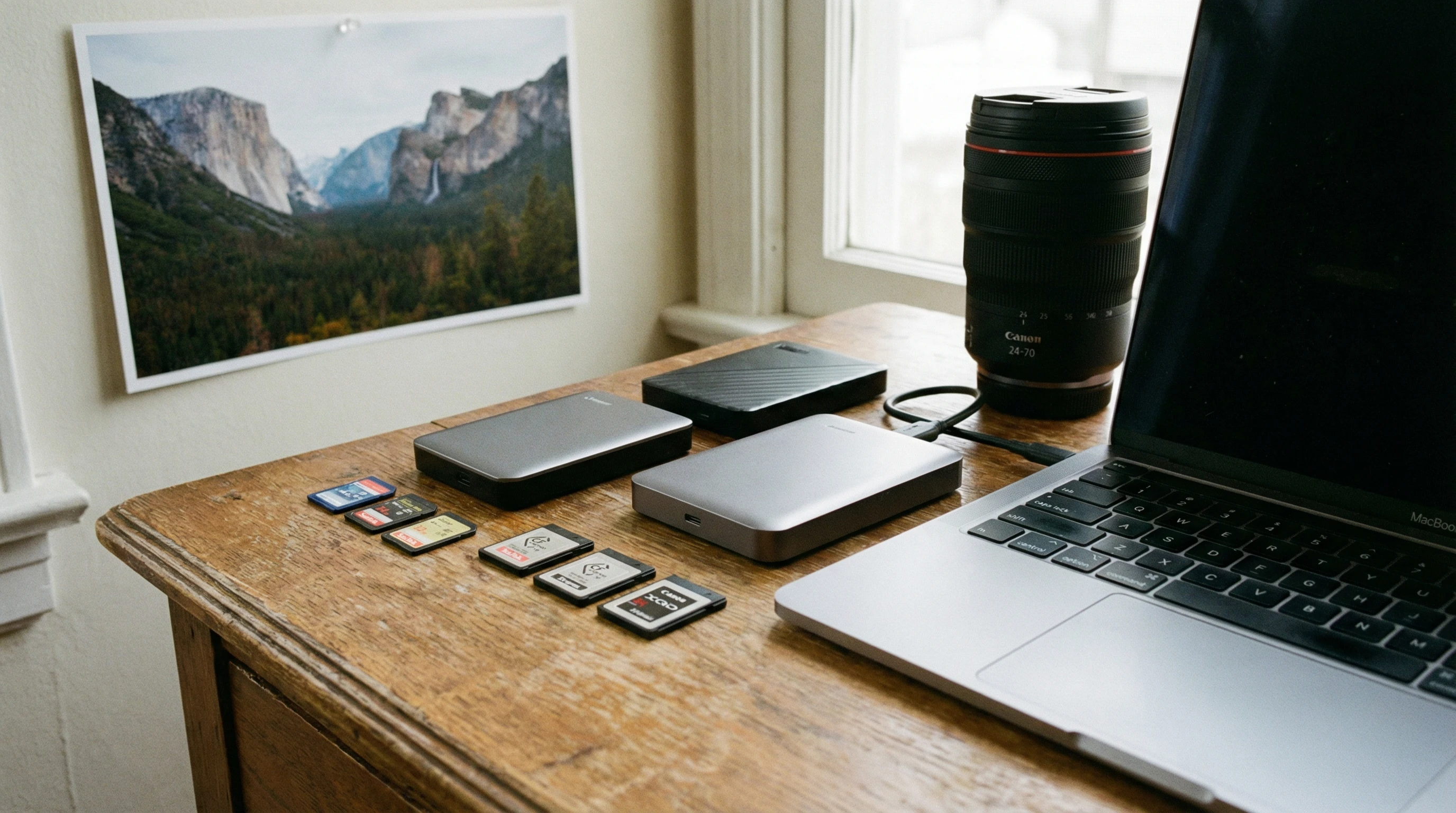
The Value of Backup and Data Storage in Photography
Digital photography lets you shoot hundreds or even thousands of images in just one session. While that’s super convenient, it also means you’re sitting on a massive pile of irreplaceable files. All digital files are vulnerable. Hard drives crash, memory cards can fail, and accidents happen. I’ve spoken with photographers who’ve lost entire shoots after a laptop was stolen from a car or a memory card decided to give up at the worst possible time.
The real value of a photo isn’t just in the click of the shutter. It’s in the moment, the memory, or the message captured. Losing those files can cost you business, trust, or even just your favorite memories. Professional photographers and hobbyists both benefit from having a reliable backup and storage game plan. You can come back from almost anything—if your files are somewhere safe.
Getting Started with Your Backup Plan
Building a backup routine doesn’t need to be complicated. The real key is redundancy: you want more than one copy of your files, and you want them in different places. Start with these basics:
- Onsite Backups: External hard drives or NAS units (networkattached storage) are excellent for quick and easy local copies. These are the fastest way to keep another copy of your work.
- Offsite Backups: Cloud storage (think Dropbox, Google Drive, or Amazon Photos) or another drive stored somewhere else comes in handy if something happens at your main location.
- Backup Frequency: Try to make backing up a regular habit—best after every shoot or at least daily. It takes little time if you keep it up.
Personally, I do a quick card dump onto my laptop, copy the files to an external SSD, then upload the keepers to cloud storage. This three-point workflow only takes a few minutes, and I can sleep better knowing I’m covered against most disasters.
Building a Reliable Backup and Storage Workflow
Consistency is what truly keeps your files safe, more than the fanciest gear. Here’s a simple routine I’ve followed for years, and it works:
- Transfer Files Immediately: Don’t leave files on the memory card for weeks. As soon as you finish a shoot, move everything to your computer and also to a backup drive.
- Make Organized Folders: Name your folders with the date and project specifics. This helps track images and avoid losing files by overwrites.
- Duplicate Data While Editing: Always work from a folder that gets automatically backed up to the cloud or a secondary drive. This way, you’re protecting your edits as well as your raw files.
- Archive Finished Work: When the job’s complete, move files you don’t need daily to an archival hard drive or cloud service. This keeps your main working drive clutter-free and lowers the odds of accidental deletion.
If this process sounds like a lot at first, don’t worry. It becomes second nature quickly. Having both local and cloud-based copies is a huge safety net for your work.
Stuff to Consider Before Choosing Backup & Storage Options
Your storage strategy should fit your shooting habits, budget, and comfort with tech. Some photographers are happy to tinker with RAID arrays or NAS units, while others just want the simplest possible setup. Consider these key areas:
- Storage Capacity: RAW files eat up plenty of space. Make sure your system can keep up with your file load.
- Speed: Fast SSDs let you spend less time waiting. This is especially handy if you edit a lot or need to work on the go.
- Budget: There are wallet-friendly and expensive options on the market. You don’t have to empty your savings, but don’t skimp either—cheap drives fail more often.
- Ease of Use: A backup plan only works if you really use it. Make things as smooth and hasslefree as possible.
Hard Drives: External and Internal
External hard drives are my standard solution. SSDs (solid state drives) are much faster and more rugged than spinning platter drives, though they do cost more per gigabyte. For longterm storage and big picture archives, traditional HDDs are fine, but I always keep at least two copies, just in case one decides to quit.
Cloud Storage
Cloud services are perfect for making sure you have a safe, offsite copy of your images. They’re especially great for travelers. Sync your favorite work online so you can get to it even if your office, house, or laptop is ever lost. Choose a reputable service—free versions have limits, but paid plans from Dropbox, Google, Backblaze, or Amazon suit most photographers’ needs.
Backing Up Memory Cards
Some photographers go for portable backup devices that copy cards without a laptop. These prove handy at weddings or in several-day adventures, where bringing your whole gear bag isn’t an option. Always doublecheck your backup finished before formatting any cards—otherwise you risk losing images you thought were saved.
Data Organization and File Naming
Messy folders can be a nightmare to sort out later, especially when looking for a client’s session or an old portfolio shot. Try to use consistent folder naming, for example: YEAR-MONTH-DAY-Project. Most modern editing software lets you tag and categorize files on import, which helps down the line.
Quick Guide to Creating a Safe Photo Data Workflow
Staying organized helps you dodge stress. Here’s a checklist I follow with every shoot:
- Transfer images right after the session.
- Back up to two devices (one local, one offsite cloud or drive).
- Test that files open and can be previewed before wiping the cards.
- Check and refresh old backups on a regular basis.
- Keep a gear checklist for backup drives, cables, and chargers—because nothing’s worse than a missing connector when you’re on assignment.
Stick to this workflow, and your photos are a lot safer, regardless of how busy or chaotic your schedule becomes.
Common Backup Problems Photographers Face (and How I Deal With Them)
- Drive Failure: Drives can die with little or no warning. Having mirrored copies or cloud sync means you won’t panic if it happens.
- Accidental Deletion: I once deleted a whole folder on a tired editing night. If not for my cloud backup, I’d have lost every shot.
- Corrupted Cards: If a card error pops up, stop shooting on it, and give recovery software a try. Always have a backup before reformatting any card.
- Skipped Backups: Life gets busy. Use phone reminders or automate your backup process with the right apps to help yourself keep on track.
Drive Failure
Most photographers run into a drive failing at least once in their careers. I make sure my drives are labeled neatly, and I keep at least two containing my archives. Date your drives and plan to swap older ones out every few years for fresh storage.
Cloud Service Issues
Even the best cloud services can have hiccups or brief downtime. That’s why I always keep a local backup for my active projects. If syncing bugs pop up, check the service’s status page, and keep all login details in a secure spot for easy recovery.
Pro Strategies and Handy Extras
After the basics are covered, add in some extra habits to really lock things down:
Automate Your Backups: Put backup software or cloud sync apps to work for you. Automation means you never have to remember to run a manual backup on a busy day.
Versioning: Some cloud systems save older versions of your files, so you can recover them if you accidentally save over a favorite shot.
Encryption: Add an extra layer of safety for sensitive client photos or private projects in case a drive or laptop is stolen. Encryption can be a lifesaver.
Multiple Locations: If possible, stash copies in separate locations—maybe one at home, another at your studio, or a trusted friend’s place. This is key in case of fire or theft.
The idea is to make your backup process so simple that it never gets skipped, no matter how packed your calendar gets.
Frequently Asked Questions
Curious about backup and data storage? These are questions I hear most:
Question: How many backups should I really have?
Answer: The “3-2-1 rule” is legendary: three total copies, two different forms of storage (hard drive plus cloud), and one copy offsite.
Question: What’s better, cloud or physical storage?
Answer: Each has strong points. The ultimate safety nets come from using both together for full coverage.
Question: Can I just use free cloud storage?
Answer: Free accounts are okay for a handful of files, but they’re limited. Paid plans are much more suited for big collections and professional needs.
Wrapping Up
Good backup and storage habits truly keep your photos safe, no matter how often you shoot or how much experience you have. There is nothing enjoyable about losing precious images, but it’s quick and easy to set up a workflow that stops that worry in its tracks. Get your systems in order, and you can focus on the fun and art of photography, knowing you’re always prepared and your memories or work will be protected for years to come.
If you haven’t yet, now’s the best time to sort out your backup setup and make sure your images are safe for the long haul.